

 Phoenix 24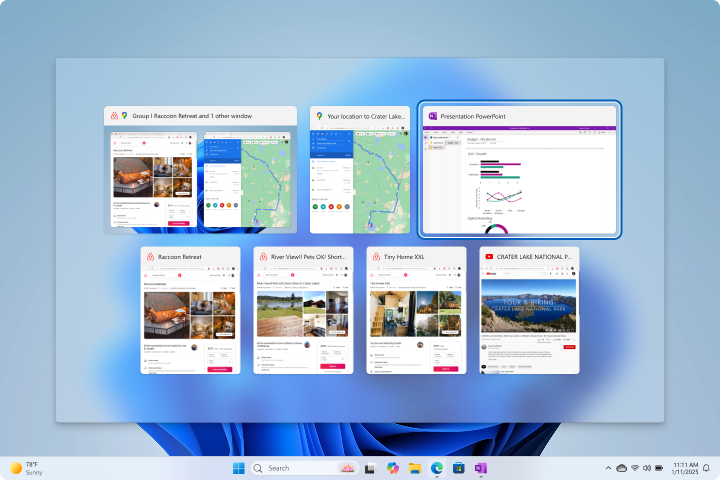
Virtual desktops reduce clutter without extra hardware.
REDMOND, UNITED STATES — July 2026.
Windows 11 includes a built-in feature that can make a single monitor feel like several separate workspaces. Known as virtual desktops, the tool allows users to distribute applications, documents and browser windows across independent digital environments. No additional monitor or third-party software is required. The feature is particularly useful for people who manage several projects or applications simultaneously.
Virtual desktops do not divide the physical display into multiple visible screens. Instead, they create different work areas that users can switch between whenever necessary. One desktop might contain spreadsheets and reports, while another holds email, messaging and videoconferencing applications. A third space can be reserved for music, videos or personal browsing.
The quickest way to access the feature is by pressing Windows + Tab, which opens Task View. Users can then select New desktop to create another workspace. A faster shortcut is Windows + Ctrl + D, which immediately generates and opens a new virtual desktop. Each additional space can contain its own combination of open windows and applications.
Moving between desktops can also be done without using the mouse. Pressing Windows + Ctrl + Right Arrow moves to the next desktop, while Windows + Ctrl + Left Arrow returns to the previous one. These shortcuts allow users to change activities almost instantly without minimizing and reopening numerous windows. The result is a cleaner interface and a more organized workflow.
Applications can be transferred from one desktop to another through Task View. After pressing Windows + Tab, users can right-click the desired window, select Move to and choose its destination. Windows can also be dragged directly between the desktop previews shown on the screen. This flexibility is helpful when an application was opened in the wrong workspace or becomes part of another project.
Windows 11 also allows certain applications to remain visible across every virtual desktop. From Task View, users can right-click a window and select the option to display that window on all desktops. They may alternatively choose to show every window belonging to the same application. This is useful for messaging platforms, videoconferencing tools or reference documents required throughout the working day.
Each desktop can be renamed to reflect its purpose. Labels such as Work, Research, Meetings, Personal or Entertainment make it easier to identify the correct space quickly. Users can also assign different backgrounds to individual desktops, creating a visual distinction between professional and personal activities. These customization options become increasingly valuable as the number of workspaces grows.
A virtual desktop does not fully replace a second physical monitor because different spaces cannot normally be viewed simultaneously. A dual-monitor configuration still offers advantages for tasks requiring constant side-by-side visibility, such as comparing documents or monitoring live information. Virtual desktops instead reduce visual congestion by separating unrelated activities. They provide organizational benefits without requiring additional desk space, cables or hardware investment.
The feature can also improve concentration by reducing the number of competing windows visible at one time. Keeping communication tools away from the main work desktop may limit interruptions during writing, analysis or design tasks. Separating personal applications can further prevent entertainment content from appearing during meetings or presentations. The effectiveness of the system ultimately depends on creating a simple structure rather than opening an excessive number of desktops.
Closing a virtual desktop does not normally close the applications it contains. Pressing Windows + Ctrl + F4 removes the active desktop and transfers its open windows to another available workspace. Users should nevertheless save important documents before reorganizing or restarting the computer. Some applications can restore previous sessions after a restart, but open-window arrangements may vary depending on system and application settings.
Virtual desktops are most effective when combined with Windows 11 features such as Snap Layouts. Snap Layouts organize several windows within one desktop, while virtual desktops separate entire categories of activity. Together, they provide two levels of organization: arrangement within a workspace and separation between workspaces. This combination can make a single laptop screen substantially easier to manage.
The feature represents a practical alternative for users who want greater productivity but cannot purchase or install another monitor. It is free, integrated into Windows 11 and controlled through a small group of keyboard shortcuts. Although it cannot reproduce every advantage of a physical multi-screen setup, it can significantly reduce clutter and simplify daily navigation. A more organized digital workspace may begin not with new hardware, but with a feature already installed on the computer.
Phoenix24 — Global news with clarity and perspective.