

 Phoenix 24
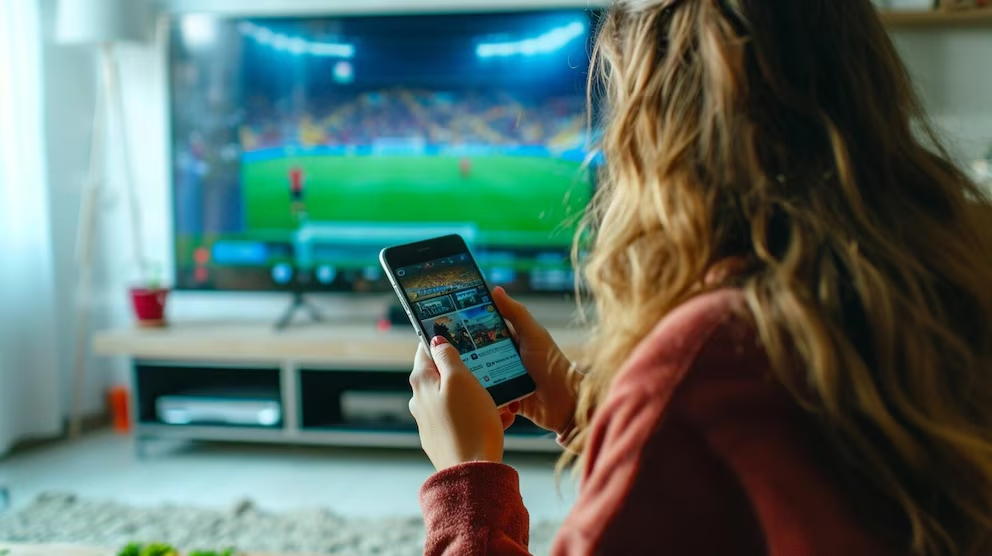
An integrated solution that cuts out cables, apps, and complexity from your streaming routine.
San José, September 2025.
Sharing photos, videos, or presentations from an iPhone to a large screen no longer requires cables or third-party apps. With Apple’s native AirPlay feature, users can mirror their iPhone screen directly to Smart TVs that support AirPlay or to Apple TV units. Everything works wirelessly and with minimal setup.
For this function to work, both the iPhone and the Smart TV must be connected to the same Wi-Fi network and be physically close to each other. The Smart TV must also support AirPlay by default or be connected to an Apple TV via HDMI. Recent models from Samsung, LG, Sony, and other manufacturers usually meet these requirements.
On the iPhone side, compatibility begins with newer models, specifically those running recent versions of iOS with the updated Control Center. The process is straightforward. Swipe down from the top right corner of the screen to open Control Center, tap the “Screen Mirroring” icon, select the desired Smart TV or Apple TV from the list, confirm the code displayed on the television, and the screen starts mirroring immediately.
If the television does not appear in the list, common causes include the devices being on different networks, the TV being turned off or out of date, or the AirPlay option being disabled in settings. Restarting both devices and confirming that they are on the same Wi-Fi usually resolves the issue. For older televisions that lack AirPlay, connecting an Apple TV through HDMI remains the most practical solution.
Stopping the mirroring is equally simple. Reopen Control Center, tap the screen mirroring icon, and select “Stop Mirroring.” If an Apple TV is being used, pressing the menu button on its remote will end the transmission and return the television to its previous input.
The appeal of this function is its simplicity and security. There is no need to download third-party applications, and no risk of granting permissions to unknown software. Everything happens within the same local Wi-Fi network, and many setups require a security code to ensure that only authorized devices connect.
Because the feature is built directly into iOS, there is no additional installation. The only requirements are an updated operating system and a compatible Smart TV or Apple TV. This accessibility makes it attractive to users who want reliability without technical complications.
In practice, the function adapts to a wide range of everyday scenarios. Families can share vacation photos instantly on a big screen. Students and professionals can project a presentation without carrying external devices. Users can stream videos, view apps, or even play games on a larger display with minimal effort. The integration with Apple TV also ensures smooth audio and video transfer, maintaining consistency across devices.
There are, however, limitations to consider. A stable Wi-Fi network with sufficient bandwidth is essential. If many devices are connected simultaneously, delays or interruptions may occur. Continuous mirroring can also drain the iPhone battery quickly, and televisions require the latest firmware to avoid compatibility issues.
Ultimately, the screen mirroring option demonstrates how Apple designs features that combine hardware and software to simplify the user experience. It turns what was once a complicated process into a seamless action available to anyone with compatible devices. For those who meet the requirements, the result is an elegant solution that saves time and reduces friction in daily use.
“True convenience is not created by adding more, but by removing what is unnecessary.” / “La verdadera comodidad no se crea añadiendo más, sino eliminando lo innecesario.”